Use the Time & Sales Properties window to customize many of the visual display settings of the Time & Sales window.
 How to access the Time & Sales Properties window
To open the Time & Sales Properties window, right-click the Time & Sales window, then select
|
Available properties and definitions
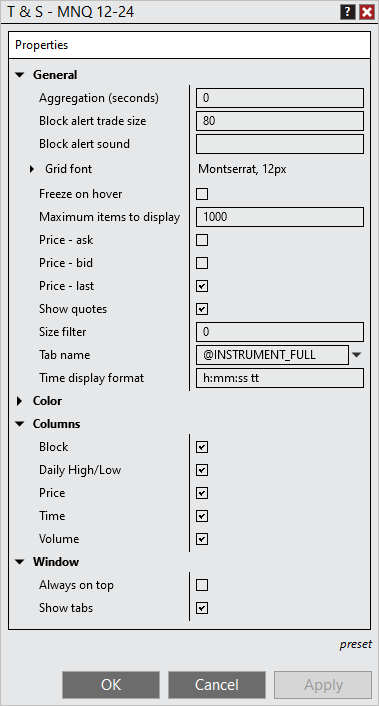
Property definitions
General
|
|
Aggregation (seconds)
|
Sets how many seconds of ticks NinjaTrader aggregates into the same line. All volume at the same price and location relative to the bid/ask value is bundled together and time stamped with the first tick. A value of 0 means no aggregation.
|
Block alert trade size
|
Sets the minimum last trade size that triggers a block trade alert
|
Block alert sound
|
Sets the sound file that plays when a block alert triggers
|
Grid font
|
Sets the font options
|
Freeze on hover
|
Turns on or off freezing the Time & Sales window when you hover over it
|
Maximum items to display
|
Sets the number of display rows
|
Price - ask
|
Sets whether the window shows Level 1 ask data
|
Price - bid
|
Sets whether the window shows Level 1 bid data
|
Price - last
|
Sets whether the window shows Level 1 last data
|
Size filter
|
Sets the minimum trade size. NinjaTrader filters out trades smaller than this size.
|
Tab name
|
Sets the tab name
|
Time display format
|
Sets the display format for the time column. You can customize the format with the following symbols:
d
|
The day of the month, from 1 through 31.
|
dd
|
The day of the month, from 01 through 31.
|
f
|
The tenths of a second in a date and time value.
|
ff
|
The hundredths of a second in a date and time value.
|
fff
|
The milliseconds in a date and time value.
|
hh
|
The hour, using a 12-hour clock from 01 to 12.
|
HH
|
The hour, using a 24-hour clock from 00 to 23.
|
mm
|
The minute, from 00 through 59.
|
s
|
The second, from 0 through 59.
|
ss
|
The second, from 00 through 59.
|
tt
|
The AM/PM designator.
|
|
Color
|
|
Above ask background
|
Sets the background color for trades above the ask price
|
Above ask foreground
|
Sets the text color for trades above the ask price
|
Ask background
|
Sets the background color for ask data
|
Ask foreground
|
Sets the text color for ask data
|
At ask background
|
Sets the background color for trades at the ask price
|
At ask foreground
|
Sets the text color for trades at the ask price
|
At bid background
|
Sets the background color for trades at the bid price
|
At bid foreground
|
Sets the text color for trades at the bid price
|
Below bid background
|
Sets the background color for trades below the bid price
|
Below bid foreground
|
Sets the text color for trades below the bid price
|
Between background
|
Sets the background color for trades between the bid and ask price
|
Between foreground
|
Sets the text color for trades between the bid and ask price
|
Bid background
|
Sets the background color for bid data
|
Bid foreground
|
Sets the text color for bid data
|
Block alert
|
Sets the block icon color
|
Daily high
|
Sets the high icon color
|
Daily low
|
Sets the low icon color
|
Display background
|
Sets the background color of the display rows
|
Columns
|
|
Column checkboxes
|
Turns each Time & Sales column on or off. The columns are Block, Daily High/Low, Price, Time, and Volume
|
Window
|
|
Always on top
|
Sets whether the window stays on top of other windows
|
Show tabs
|
Turns on or off the tab control
|
|
How to preset property defaults
After you set the properties you want, select in the Time & Sales Properties window, then select . NinjaTrader uses these settings as the defaults each time you open a new window or tab.
To return to the original settings, select , then select .
|
Using tab name variables
Tab name variables
You can use predefined variables in the field of the Time & Sales Properties window. For more information, see Using Tabs.
|


