The Positions tab displays the current open positions in a grid. For more information, see Data Grids.
 Understanding the Positions tab
Positions display
The grid shows your open positions.

This table lists which connections calculate positions natively and which calculate them locally.
Connectivity provider
|
Position calculation
|
Continuum and CQG
|
Native
|
cTrader
|
Native
|
Forex.com/City Index
|
Native
|
FXCM
|
Local
|
Interactive Brokers
|
Native
|
Rithmic
|
Native
|
Schwab
|
Native
|
You can reorder and resize columns, and turn individual columns on or off, in the window. To open it, right-click in the Positions grid and select . By default, the Positions grid displays the following columns:
Instrument
|
The instrument in which the position is held
|
Side
|
Shows whether the position is long or short
|
Quantity
|
The quantity held in the position
|
Avg. price
|
The average fill price of the entry orders filled to enter or increase the position
|
PnL
|
The current unrealized profit or loss of the position
|
Account Display Name
|
The display name of the account
|
Connection
|
The connection used to enter the position
|
You can add the following columns in the grid’s window:
Account Name
|
The account name. Don’t confuse it with the Account Display Name. The two can differ for live brokerage accounts, and the Account Display Name tends to be more descriptive.
|
Close
|
Adds a button that closes the position with a market order
|
Working Buys
|
The number of unfilled Buy orders currently working on the account
|
Working Sells
|
The number of unfilled Sell orders currently working on the account
|
Right-click menu
Right-click in the grid to open a menu with these commands:
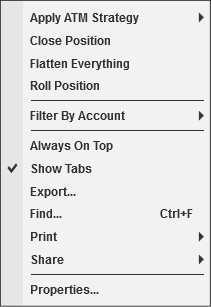
Apply ATM Strategy
|
Applies a predefined ATM Strategy template to an open position. NinjaTrader uses the current market price as the entry price.
|
Close Position*
|
Flattens the selected position and cancels any working orders for the position’s instrument
|
Flatten Everything*
|
Flattens all open positions and cancels all working orders
|
Roll Position
|
Sends a market order to exit the position in the current contract month, then sends another market order in the next contract month to roll your position.
|
Filter By Account
|
Sets which positions to display by account
|
Always On Top
|
Sets whether the window stays on top of other windows
|
Show Tabs
|
Sets whether the window allows tabs
|
Export...
|
Exports the grid contents to a CSV or Excel file
|
Find...
|
Searches for a term in the grid
|
Print
|
Prints the window or the grid area
|
Share
|
Shares through your Share Services
|
Properties...
|
Opens the properties window to configure the Positions tab
|
*The Close Position and Flatten Everything functions are not guaranteed. For more information, see Risks of Electronic Trading with NinjaTrader.
|
Positions tab properties
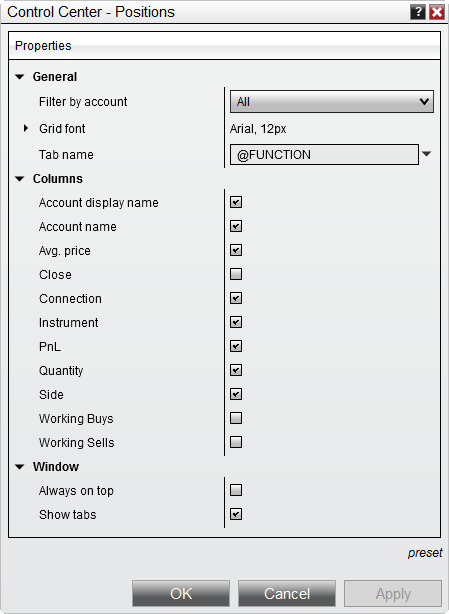
Positions tab properties
General
|
|
Filter by account
|
Filters the grid by the selected account
|
Grid font
|
Sets the font for the grid
|
Tab name
|
Sets the tab name
|
Columns
|
Turns columns on or off in the grid
|
Window
|
Turns window management features on or off
|
Set property defaults
After you set the properties the way you want, select in the properties window, then select . NinjaTrader uses these settings as the defaults every time you open a new window or tab.
To return to the original factory settings, select , then select . You can’t save a custom default to restore to.
Note: You can use predefined variables in the field. For more information, see the Tab Name Variables section of the Using Tabs page.
|
|


