|
<< Click to Display Table of Contents >> Order Handling Options |


|
Order Handling Options
|
<< Click to Display Table of Contents >> Order Handling Options |
|
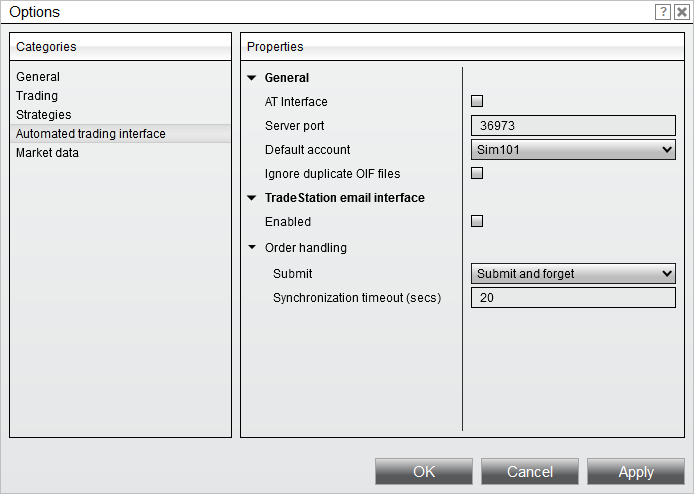
NinjaTrader has several order handling options for the signals that TradeStation sends. To find them, go to Tools in the Control Center, select Settings, and then select the Automated trading interface category. Review all of these options to make sure NinjaTrader manages your orders as you expect.
|
 Understanding market order on TradeStation fill
Market order on TS fillSubmits a market order when NinjaTrader receives a Strategy Filled Order notification email from TradeStation. This is the recommended option. |
Submit as isSubmits orders as specified (limit, market, stop, or stop limit) when NinjaTrader receives a Strategy Active Order notification email from TradeStation. When NinjaTrader then receives the Strategy Filled Order notification email from TradeStation, it converts any unfilled shares or contracts to a market order or a marketable limit order, depending on the instrument type. NinjaTrader makes this conversion after the number of seconds you set. A marketable limit order is substantially higher than the inside market when you buy and lower than the market when you sell.
|
Understanding submit and forget
Submit and forgetSubmits orders as specified (limit, market, stop, or stop limit) when NinjaTrader receives a Strategy Active Order notification. With this option, your TradeStation strategy position size is likely to fall out of sync with your live brokerage account. It requires manual action and isn’t recommended. |
Understanding synchronization timeout
Synchronization timeoutExcept for the Submit and forget option, NinjaTrader notifies you if an order is out of sync with the order fill amount that TradeStation reports. NinjaTrader waits the number of seconds you set before it notifies you. For example, TradeStation reports a market order fill of 1 contract and NinjaTrader submits a market order, but the order doesn’t fill within the set time. NinjaTrader notifies you. |
Order confirmationYou can have NinjaTrader ask for your approval before it submits an order to your brokerage account. To turn on this feature, go to Tools in the Control Center, select Settings, select the Trading category, and then turn on Confirm order placement. |
Understanding special handling for FX through FOREX.com/City Index
Special handling for FX through FOREX.com/City IndexFOREX.com rejects a limit order to buy at the ask or above, or to sell at the bid or below. NinjaTrader can check the current market rate when you submit a limit order. If the limit price is invalid according to FOREX.com but works in your favor and results in a fill, NinjaTrader automatically converts the order to a market order. For NinjaTrader to check for these conditions, you must subscribe to rate data for the currency pair you trade. Open a Market Analyzer window (in the Control Center, go to New, and then select Market Analyzer) and add all the currency pairs you trade. This makes sure NinjaTrader has rate data to cross-check an incoming limit price against. |