|
<< Click to Display Table of Contents >> Basic Entry Display Overview |


|
Basic Entry Display Overview
|
<< Click to Display Table of Contents >> Basic Entry Display Overview |
|
To open the Basic Entry window, go to the New menu in the Control Center, then select Basic Entry.
The following image shows the four sections of the Basic Entry window:
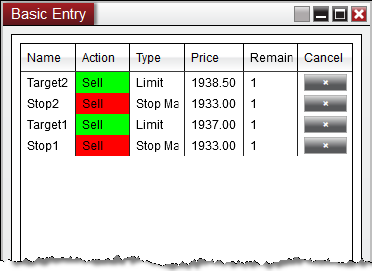
1.Order Grid
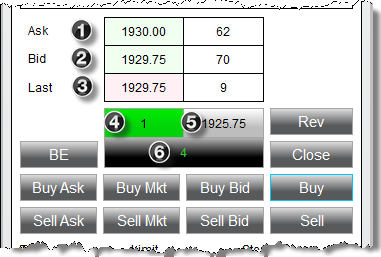
2.Position and Level 1 (current inside market) display
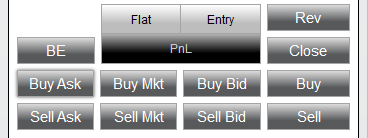
3.Action buttons
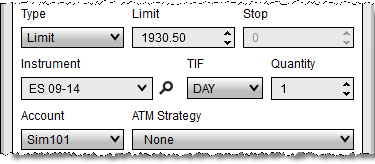
4.Order entry and ATM Strategy management
Note: Positions and orders appear only for the selected account and instrument. |
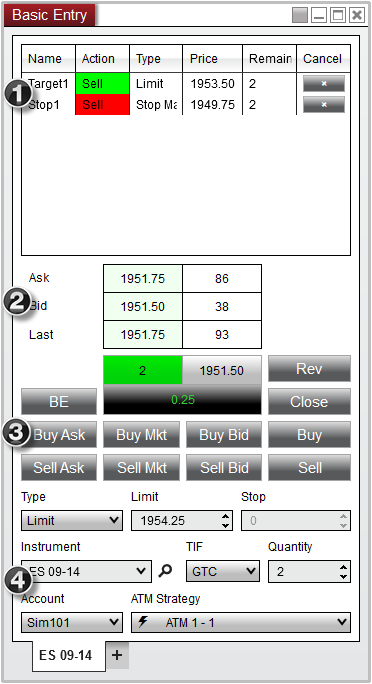
The following sections describe each part: Order Grid, Market Display, Action Buttons, and Order Control.
 Understanding the order grid section
Order Grid displayThe Order Grid displays active orders for the account and instrument selected in the Basic Entry window.
Column definitions
|
Understanding the market display section
Market data displayThe market display section of the Basic Entry window shows market prices and position information. The market price displays change color when NinjaTrader detects an uptick or a downtick.
1.Current best ask price and size 2.Current best bid price and size 3.Last traded price and size 4.Market position: Flat, or the position size on a green background for a long position or a red background for a short position 5.Average entry price of the position 6.Unrealized profit or loss for the current position. Select this cell to switch the display between points, ticks, currency, percent, and pips.
|
Understanding the action buttons section
Action buttonsThe Basic Entry window has buttons for several order-related actions.
For more about using these buttons, see Submitting Orders in Basic Entry. |
Understanding the order control section
Order controlsUse the Order Control section of the Basic Entry window to set the attributes of an order before you submit it. |
Type |
Sets the order type |
Limit |
Sets the order limit price |
Stop |
Sets the order stop price |
Instrument |
Sets the instrument |
TIF |
Sets the order time in force |
Quantity |
Sets the order quantity |
Account |
Sets the account |
ATM Strategy |
Selects the ATM Strategy |
Understanding the right-click menu
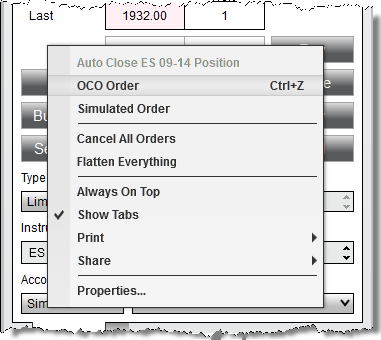
The Basic Entry window has two right-click menus, depending on where you right-click:
•Right-click the Basic Entry window to see menu items for the Basic Entry window •Right-click the Order Grid to see menu items for orders Basic Entry control right-click menuRight-click the Basic Entry window to see menu items for the Basic Entry window. |
Auto close position |
Closes the current instrument’s position automatically at a time you set |
OCO Order |
Turns the OCO (one cancels other) function on or off for a pending order |
Simulated Order |
Turns the Simulated Order function on or off for a pending order |
Cancel All Orders |
Cancels all active orders on the current account |
Flatten Everything |
Closes all open positions and cancels all open orders on every account associated with NinjaTrader |
Add Target |
Adds a profit target to the active ATM strategy |
Remove Target |
Removes a profit target from the active ATM strategy |
Reverse At Stop |
Turns on or off reversing the position when the stop loss order fills. For more information, see Auto Reverse. |
Reverse At Target |
Turns on or off reversing the position when a profit target order fills. For more information, see Auto Reverse. |
Always On Top |
Sets whether the window stays on top of other windows |
Show Tabs |
Sets whether the window allows tabs |
Shows print options |
|
Share |
Shares through your Share Services |
Properties |
Opens the window properties. For more information, see Basic Entry Properties. |
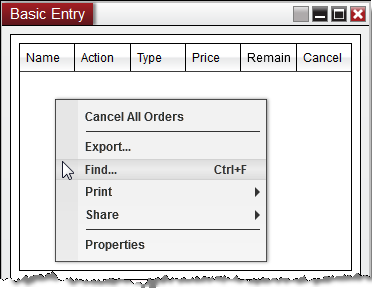
Cancel All Orders |
Cancels all active orders on the current account |
Export... |
Exports the grid contents to a CSV or Excel file |
Find... |
Searches the grid for a term |
Shows print options |
|
Share |
Shares through your Share Services |
Properties |
Opens the window properties. For more information, see Basic Entry Properties. |
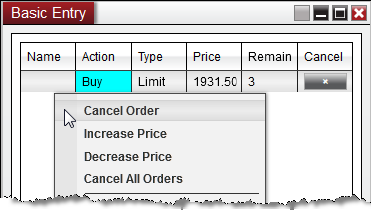
Cancel Order |
Cancels the selected individual order |
Increase Price |
Increases the price of the order by 1 tick |
Decrease Price |
Decreases the price of the order by 1 tick |
Cancel All Orders |
Cancels all active orders on the current account |